
How to Convert SACD ISO to DSD Files- Audiophile Music
How to Convert SACD ISO to DSD Files
If you have an SACD ISO image and want to extract the high-resolution DSD tracks for playback on a computer, music server, or compatible DAC, ISO2DSD is a simple and convenient tool for the job.
This guide explains how to convert an SACD ISO file into individual DSD files, with recommended settings for maintaining metadata and choosing between stereo and multichannel tracks.
What Is SACD and DSD?
SACD (Super Audio CD) is a high-resolution optical audio format introduced in 1999 by Sony and Philips as an alternative to conventional Compact Disc (CD).
Unlike standard CD-DA, which uses 16-bit/44.1 kHz PCM audio, SACD uses DSD (Direct Stream Digital) technology.
DSD uses a high sampling rate and a 1-bit audio stream to represent the audio signal. SACD commonly contains DSD64, with a sampling rate of 2.8224 MHz.
For audiophiles, extracting the original DSD stream from an SACD ISO can be useful for computer-based playback, music servers, and compatible DACs.
What You Need
Before starting, you need two things:
1. Java Runtime
Java is required to run ISO2DSD. Download Java
2. ISO2DSD Tool
ISO2DSD is a tool that can extract DSD audio tracks from an SACD ISO image. Download ISO2DSD
After downloading ISO2DSD, extract the files and run:
iso2dsd_gui.exe OR iso2dsd_gui.jar
How to Convert SACD ISO to DSD
Step 1: Install Java Runtime
Download and install the Java Runtime Environment from the official Java website.
After installation, you can proceed to ISO2DSD.
Step 2: Download and Run ISO2DSD
Download ISO2DSD and extract the ZIP or archive to a folder.
Then open:
iso2dsd_gui.exe OR iso2dsd_gui.jar
No traditional installation is required for ISO2DSD.
Step 3: Select Your SACD ISO File
In the ISO2DSD window, go to the Select file section.
Click Look in and select the SACD ISO file you want to convert.
ISO2DSD will read the contents of the SACD image and make the available tracks accessible for extraction.
Step 4: Configure the Output Options
Go to the Options section and choose the appropriate settings.
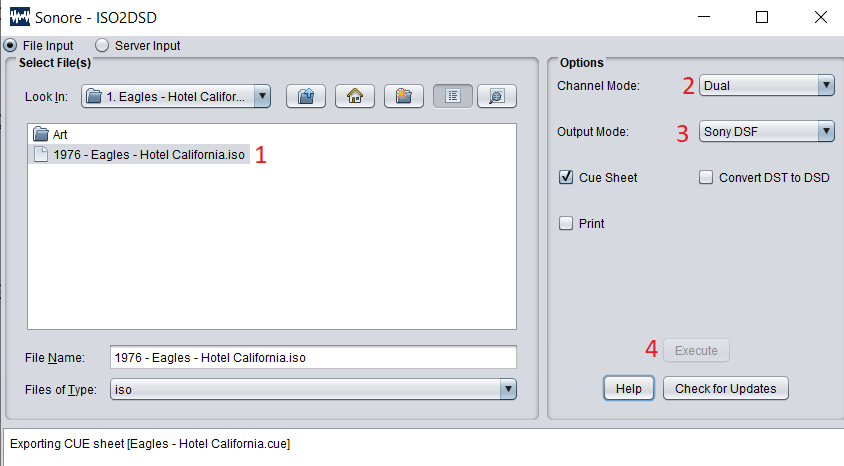
Channel Mode
Choose the channel configuration you want to extract:
- Dual – Stereo tracks
- Multi – Multichannel tracks, if available on the SACD
If you are creating files for normal two-channel stereo playback, select Dual.
Output Format
Select: Sony DSF DSF is generally the recommended choice because it supports metadata and tagging.
Convert DST to DSD
Leave Convert DST to DSD unchecked if your DAC or playback software supports DST decoding.
DST is a lossless compression format used on some SACDs. It can reduce the DSD data size significantly while preserving the original audio information.
If your playback software or hardware does not support DST, enabling this option converts the compressed stream into an uncompressed DSD stream.
Step 5: Start the Conversion
After selecting your settings, click:
Execute
ISO2DSD will extract the selected SACD tracks and create individual DSD files.
The converted files are normally saved in the same folder as the ISO2DSD application.
DSF vs. DSDIFF
ISO2DSD can create different DSD file formats.
Sony DSF
DSF is generally the better choice for a music library because it supports metadata and tagging.
Album information such as artist, album title, track title, and other tags can be stored in the file.
Philips DSDIFF
DSDIFF is another DSD file format, but it has more limited tagging support in many music-management applications.
For this reason, DSF is usually the more convenient format for a tagged music collection.
Important Notes
If Sony DSF is selected, ISO2DSD can create tagged files when the SACD ISO contains the relevant metadata.
If Philips DSDIFF is selected, tagging support is more limited and metadata may not be preserved in the same way.
The resulting DSD files will be created in the output folder specified by ISO2DSD.
Also keep in mind that SACD ISO files can be very large. Make sure you have sufficient free storage space before starting the extraction.
How to Convert SACD to PCM
If your DAC or playback system does not support DSD, you may prefer to convert the SACD/DSD content to PCM.
For a detailed guide, see:
How to Convert SACD to PCM, DSD, and Convert DSD to PCM Format
Conclusion
Converting an SACD ISO to individual DSD files with ISO2DSD is relatively straightforward.
For most stereo music libraries, Dual + Sony DSF is a practical configuration because DSF provides broad software compatibility and supports metadata. If your playback system supports DST decoding, there is generally no need to enable Convert DST to DSD.
Once the conversion is complete, the resulting DSF files can be organized in your music library and played using compatible DSD software or hardware.